 Pierhand
Put it anywhere on the map.
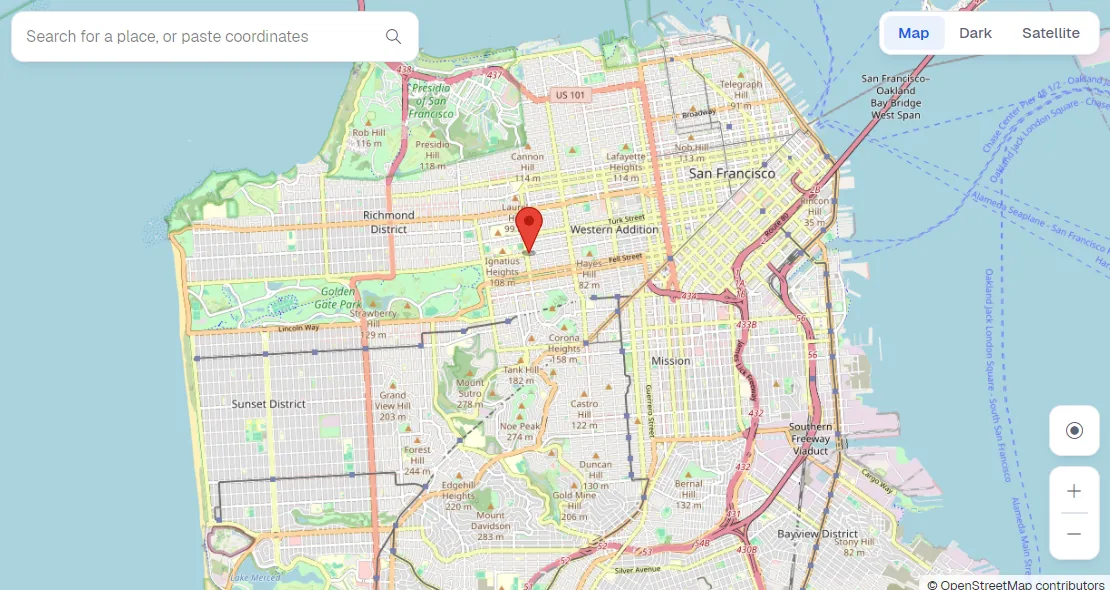
Click a spot or search for a place, press one button, and the phone reports being there. One more click puts it back.
Windows 10 and 11 · iPhone and iPad
A Windows app for the iPhone on your cable. Back it up, copy photos off, set its GPS.
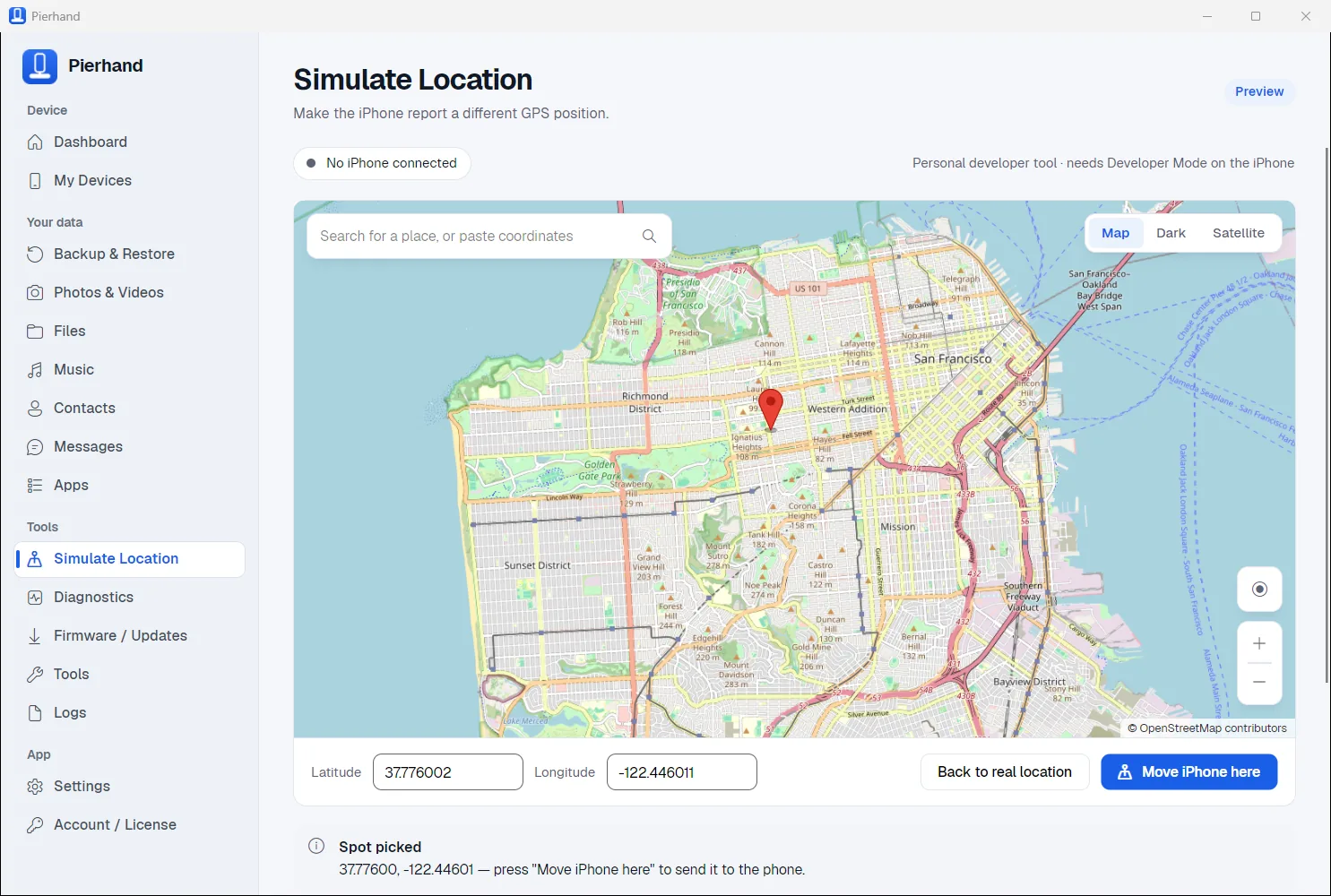
Plug in, unlock, tap Trust. Pierhand talks to the phone the way Apple's own software does. No jailbreak, and nothing installed on it.
Click a spot or search for a place, press one button, and the phone reports being there. One more click puts it back.
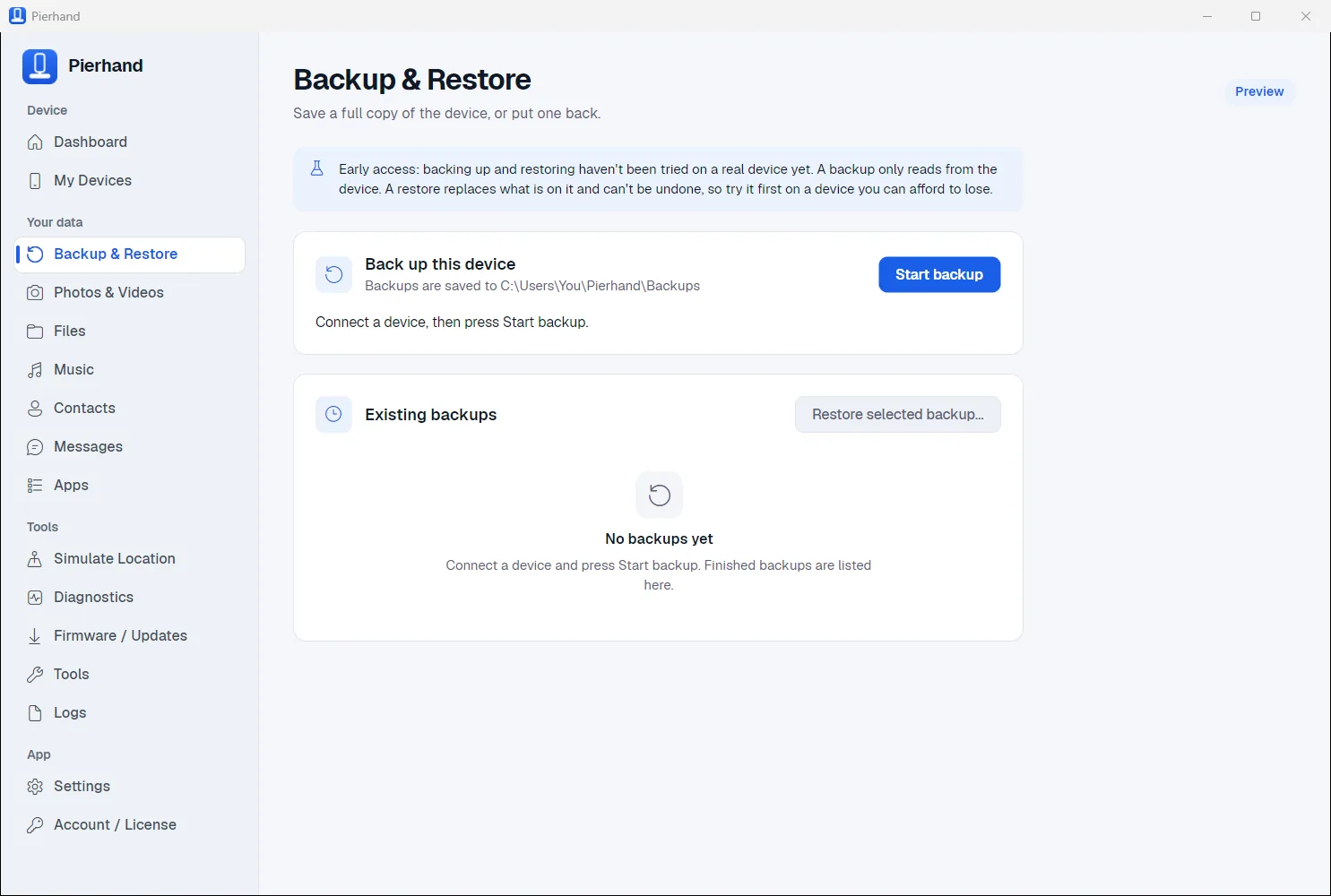
A full copy of the device on your own disk, in the format Apple's software uses. Restoring asks you to press and hold first.
Browse the camera roll and the phone's shared storage. Copy what you want to your computer. It shows what is stored on the phone itself, so photos kept only in iCloud won't be there.
Read your contacts and recent messages straight out of a backup, without restoring it to a phone.
See what's installed, read battery and hardware details, watch the live system log and collect crash reports.
Save the phone's screen to a file on your computer, rename the device, or restart it.
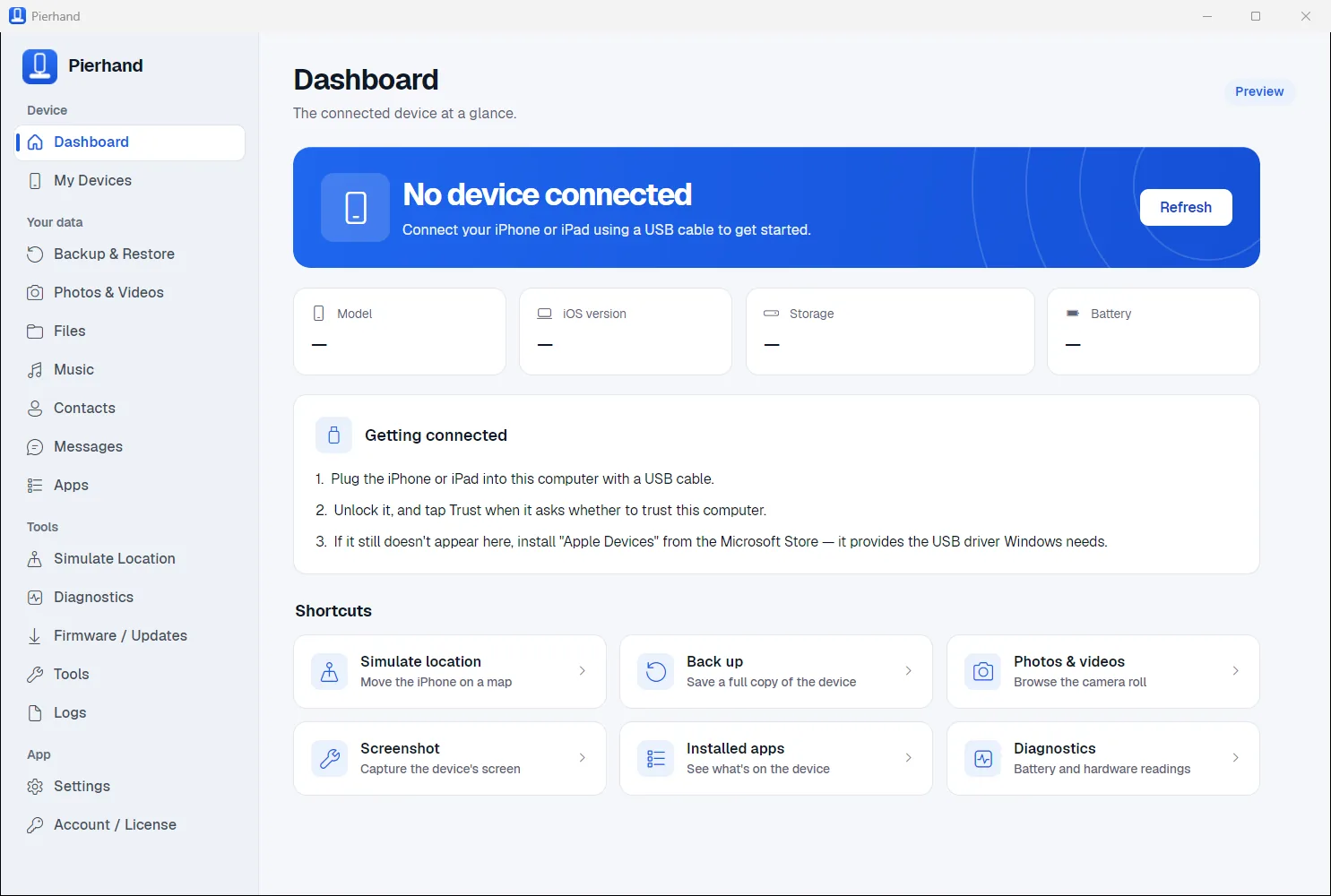
Every picture on this page is a screenshot of Pierhand itself, taken with no phone plugged in.
Some jobs need more than a cable. Pick yours and see exactly what it takes.
Needs a subscription
Many apps and games forbid simulated locations and may suspend accounts that use them. This is meant for testing on your own device.
Both unlock every page of the app. Cancel when you like and keep access until the time you paid for runs out.
Free without a subscription: the dashboard, the list of connected devices, firmware details and settings. Enough to check Pierhand sees your device before you pay.
No. Pierhand is an independent app. It isn't made, endorsed or supported by Apple.
No. It uses the same cable connection and Trust This Computer step as Apple's own software, and installs nothing on the device. It can't get past a passcode or Activation Lock.
It can. Many apps and games forbid it and may suspend accounts that do it. The feature is meant for testing on your own device. Where you use it is your responsibility.
No. Pierhand runs on Windows 10 and 11 only.
Up to 2 at a time. To move it, open Account in the app on the old computer and choose Remove from this computer, then enter your key on the new one.
Cancel any time from the link in your receipt email or from the Account page in the app. You keep access until the end of the time you paid for. Refunds are covered in the refund policy.
No. Backups are saved unencrypted, which is what lets Pierhand read contacts and messages out of them. Anyone who can use your Windows account can read them, so keep them somewhere you trust.
Pierhand lists the photos and videos stored on the phone itself. If iCloud Photos is on, most of your library is kept in iCloud and only part of it is on the phone at any time, so only that part appears. Unlock the phone before loading the list, too: a locked iPhone hides its photos.